
The clip page
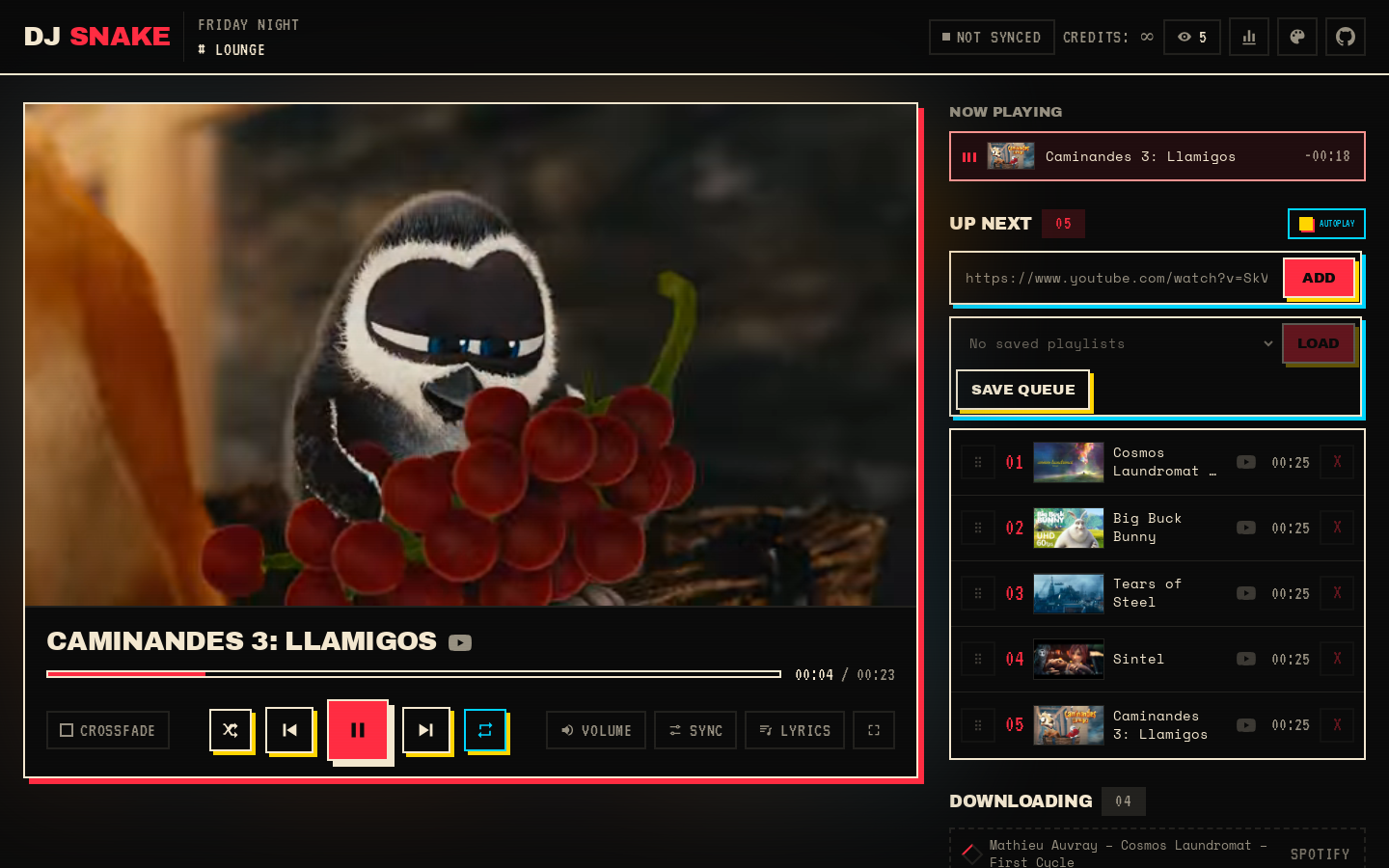
When the bot joins voice it posts a link such as https://dj.example.com/<session> and keeps a status message in that text channel (see Who controls the music for the view-only link). The clip page is a web page that shows the video of the current track, muted and in sync with the audio the bot plays in Discord.
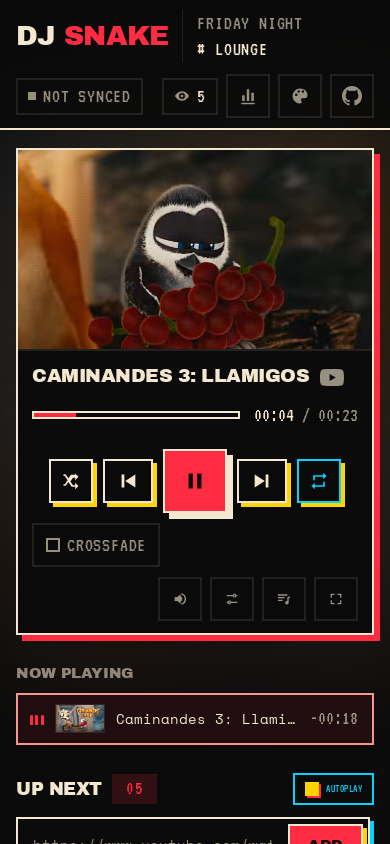
On a phone the same page adapts to a narrow screen:
What it does
Section titled “What it does”The page shows the current video, the queue (“Up next”), a “Now playing” row, tracks still downloading, and a progress bar. It lets you:
- skip to the next track or go back (previous restarts the track if it has played for more than 5 seconds or there is no history);
- pause and resume;
- seek by clicking the progress bar;
- play a queued track now (jump);
- remove or reorder queued tracks by dragging;
- add YouTube, Spotify, SoundCloud, Bandcamp, Deezer or Apple Music (details) links, a YouTube live, a Twitch channel or an internet radio (live streams: a LIVE badge replaces the progress bar), or type a song to search on YouTube;
- shuffle the queue once and cycle the loop mode (off, track, queue) with the two buttons around the transport controls;
- toggle crossfade;
- change the server’s volume with the speaker button next to Sync (a slider from 0 to 150%, keyboard accessible; the change is sent after you stop dragging);
- pick an audio filter (bass boost, nightcore, vaporwave, 8D, karaoke, soft, or a 3-band equaliser with one slider per band) in the same popover as the volume; the speaker button is highlighted and names the filter while one is on (see
!filterin Commands); - toggle autoplay (a switch in the “Up next” header; tracks it picks carry a small “Autoplay” badge in “Now playing”);
- save the current track and queue as a playlist, or load a saved one (see
!playlistin Commands); - show the lyrics of the current track.
When members are voting to skip the track on Discord (!voteskip), a small “Skip 2/3” badge appears in the header. The page itself has no identity, so it cannot vote.
Web actions are applied exactly like Discord commands and are reflected in the status message. The header shows how many people have the page open and a chart button that opens the server’s listening stats.
The bot pushes every change to the page as it happens (a Server-Sent Events stream); if the stream cannot get through, the page polls every 2 seconds instead and tries the stream again later. The page keeps the muted video aligned with the audio position, including pauses and seeks. When crossfade is on, the page cross-dissolves its two videos during an overlap; skips are an instant swap. With a speed filter (nightcore, vaporwave) the video, the progress bar and the lyrics run at the same speed as the audio.
Phone and headset controls (Media Session)
Section titled “Phone and headset controls (Media Session)”While a track plays, the page publishes the title, an artist when the title reads “Artist - Title”, the server and channel as the album, the thumbnail as artwork, the play/pause state and the position to the browser’s Media Session API. Lock screens, notification shades, Bluetooth headsets and keyboard media keys can then show it. With the control link they also send play, pause, next, previous, seek and +/- 10 s to the bot, exactly like the page’s buttons. With the view-only link only the metadata is shown: no handlers are registered, so the keys do nothing.
Browsers only show media controls for a page that is playing audio, and the clip video is muted. So the page starts a silent, looping <audio> element (a one-second WAV built in the page, nothing to download) on your first tap or key press, since browsers refuse to start audio before a gesture. It plays no sound; it only makes the browser treat the tab as a media player. It stops when the session ends.
What to expect (the API support is documented by browsers; the silent-audio trick is a widely used workaround, but it has not been verified on every device by the project):
| Browser | Metadata and artwork | Lock screen / notification controls | Notes |
|---|---|---|---|
| Chrome, Android | yes | yes, after one tap on the page | Needs the tab to stay open; Chrome may freeze a long-backgrounded tab. |
| Safari, iOS | yes | usually, after one tap | Starting audio can pause other apps’ music. iOS suspends background web pages, so controls can stop working after a while. |
| Chrome, desktop | yes | media keys and the media hub, after one click | |
| Firefox, desktop | yes | media keys and OS media controls, after one click | Seek handlers and artwork support vary by version and OS. |
Limits: the controls depend on the browser keeping the tab alive, which phones do not always allow; the artist comes from the title, so it is empty when the title has no “Artist - Title” shape; and the position shown is the bot’s clock, so a Sync offset does not apply to it.
Lyrics
Section titled “Lyrics”The Lyrics button (next to Sync) shows the words of the current track over the bottom of the clip, and follows the clip into fullscreen. With synced lyrics, the line being sung is highlighted and scrolled into place, with a thin bar under it that runs out when the next line starts. Lyrics follow the same clock as the video, your Sync offset included, so if the clip matches what you hear, so do the words. When only plain lyrics exist they appear in a scrollable sheet; when none are found the page says so quietly. Your choice is remembered in your browser.
Lyrics come from LRCLIB, a free lyrics database that needs no account or key. The bot looks them up in the background as soon as a track is queued, so playback never waits. It searches for the artist and title from Spotify when the track came from a Spotify link, and otherwise parses the YouTube title (“Artist - Title”, dropping tags such as “(Official Video)” or “ft. …”, or using the channel name as the artist); the track’s duration picks the right version. Found lyrics are cached in DATA_DIR/lyrics/. At most two lookups run at once, and when LRCLIB cannot be reached the page asks again later instead of concluding there are none. Set LYRICS=0 to turn the feature off.
Timing can be off for music videos with a long intro that SponsorBlock does not cut, or for a different edit of the song than the one LRCLIB has.
Keyboard shortcuts
Section titled “Keyboard shortcuts”The page can be driven from the keyboard; press ? (or use the keyboard button in the header) for the same list in a dialog, in English or French.
| Keys | Action |
|---|---|
Space, K | Play or pause |
J, ← / L, → | Seek back / forward 10 s (Shift: 30 s) |
N / P | Next / previous track |
S | Shuffle the queue |
R | Cycle loop: off, track, queue |
M | Mute or unmute |
↑ / ↓ | Volume up / down 5 % |
F | Fullscreen |
Y | Show or hide lyrics |
T | Theme menu |
? | Open the shortcuts help |
Esc | Close a dialog or menu |
Shortcuts are ignored while you type in a field and when Ctrl, Alt or Cmd is held. On a view-only link only F, Y, T, ? and Esc work. Letters match the character printed on the key, not its position, so they work on AZERTY and QWERTZ; layouts with no Latin letters (Cyrillic, Greek) fall back to the physical key. Actions with no visible change (loop mode, volume, mute) are announced in a short message that screen readers read out.
Listening stats
Section titled “Listening stats”The chart button shows, for the last week, month or all time: top tracks and artists, the most skipped track, hours played, number of tracks and sessions, peak listeners, and a day-by-hour heatmap shown in your browser’s time zone.
Stats are kept in DATA_DIR/stats.db. For each played track the bot records who asked for it (the Discord display name, or “page web” for links added on the page), how long it played, and whether it was skipped (left before 30 seconds of play), plus voice sessions and the peak number of listeners. The requester is stored but never shown on the page.
Sessions
Section titled “Sessions”A session belongs to the server, not to a voice connection: it survives the bot leaving voice (end of queue, !stop, being kicked, !reset). A fresh join reuses the unexpired link, or creates a new one.
A session expires after SESSION_IDLE_HOURS (6 by default) without playback, voice presence, commands or web actions. Its downloaded files are then deleted, and the old link answers that the session is unknown. Run !play again for a fresh one.
When the queue runs out, the bot stays in voice for IDLE_DISCONNECT_SECONDS (300 by default) so a track added meanwhile plays at once without rejoining; the page stays usable. It leaves after 30 seconds if nobody is left in the channel. With 24/7 mode on (!stay on) it never leaves, and the session does not expire while the bot is in voice; the page shows a small “24/7” badge.
Installing the page as an app
Section titled “Installing the page as an app”The page is a progressive web app. Over HTTPS (or on localhost) a browser that supports it offers to install it: Chromium-based browsers show an “Install app” item at the bottom of the palette menu (the small cross next to it hides it), and on iOS Safari use Share, then “Add to Home Screen”. The installed app opens straight on the same session, with the server’s theme name, background colour and logo (the default djsnake icon when no logo is set). A view-only link installs as a view-only app: nothing in the manifest ever names the control link.
A service worker keeps only the page itself and the fonts, for a faster reopen. It never stores the API, the live stream, media or lyrics. When the bot cannot be reached, the app shows a “Session offline” page with a retry button, and an expired session still shows the usual “session ended” state. A new bot version replaces the cache on its own.
Exposing the page
Section titled “Exposing the page”The web server listens on WEB_PORT. Compose publishes it on WEB_BIND, which defaults to 127.0.0.1 (this machine only). To reach it from elsewhere, put a reverse proxy or a tunnel in front, and set PUBLIC_BASE_URL to the public address so the posted link is correct.
# Caddyfiledj.example.com { reverse_proxy 127.0.0.1:47823}# or a Cloudflare Tunnel, then PUBLIC_BASE_URL=https://dj.example.comcloudflared tunnel --url http://127.0.0.1:47823Live updates through a proxy
Section titled “Live updates through a proxy”The page receives its state over a long-lived Server-Sent Events stream, GET /api/<session>/events, with a ping event after 10 seconds of silence. The server answers 429 beyond 100 streams per session, 10 per client or 500 in total, and the page then polls. The page also drops a stream that stays silent for 25 seconds, or when its tab comes back after more than 10 seconds, and polls again. A proxy that buffers responses holds those events back, so:
- Caddy and Cloudflare Tunnel need no settings.
- nginx must not buffer the stream. The bot sends
X-Accel-Buffering: no, which nginx honours, but set it explicitly anyway and keep the connection open longer than the 10-second heartbeat:
# nginx: the page's live updates are a long-lived stream, so no bufferinglocation / { proxy_pass http://127.0.0.1:47823; proxy_http_version 1.1; proxy_set_header Connection ""; proxy_set_header X-Forwarded-For $proxy_add_x_forwarded_for; proxy_buffering off; proxy_read_timeout 1h;}- Pass the client address in
X-Forwarded-For(as above). The bot caps open streams per client (10), per session (100) and overall (500); behind a local proxy without that header, every visitor would share one address.
If the stream still cannot get through, the page falls back to polling on its own, so it keeps working, only with up to 2 seconds of delay.
Who controls the music
Section titled “Who controls the music”Each session has two links, both long random ids that cannot be guessed:
- the control link (
/<session>): the full page, with every control; - the view-only link: the same page with the controls hidden and a “View only” badge in the header. The server refuses every control sent with it (HTTP 403), so it is safe to share widely.
How the bot hands them out:
| Setup | Status message | Control link |
|---|---|---|
WEB_CONTROL=everyone (default), no DJ role | Both links | Public: anyone in the channel can control the music, as in earlier versions. |
A DJ role set with !djrole <role> | View-only link only | DJs and members with Manage Server get it by DM with !weblink. |
WEB_CONTROL=dj | View-only link only | Members with Manage Server, or the DJ role if one is set, get it with !weblink. |
Every change of the DJ role (set, replaced or removed) while a session is live replaces its control link and retires the server’s pending !theme edit links: the control link that was posted before stops working, and the view-only link keeps working. A view-only page follows the new control link on its own. The DJ role also gates the Discord commands that change playback; see !djrole in Commands.
Language
Section titled “Language”The page is available in English, French, Spanish and German. It follows the server’s language (!language, or BOT_LANGUAGE for servers that never set one), then the browser’s language. Viewers can override it for themselves under Language in the palette menu: Automatic, English, Français, Español or Deutsch. That choice stays in their browser.
Themes
Section titled “Themes”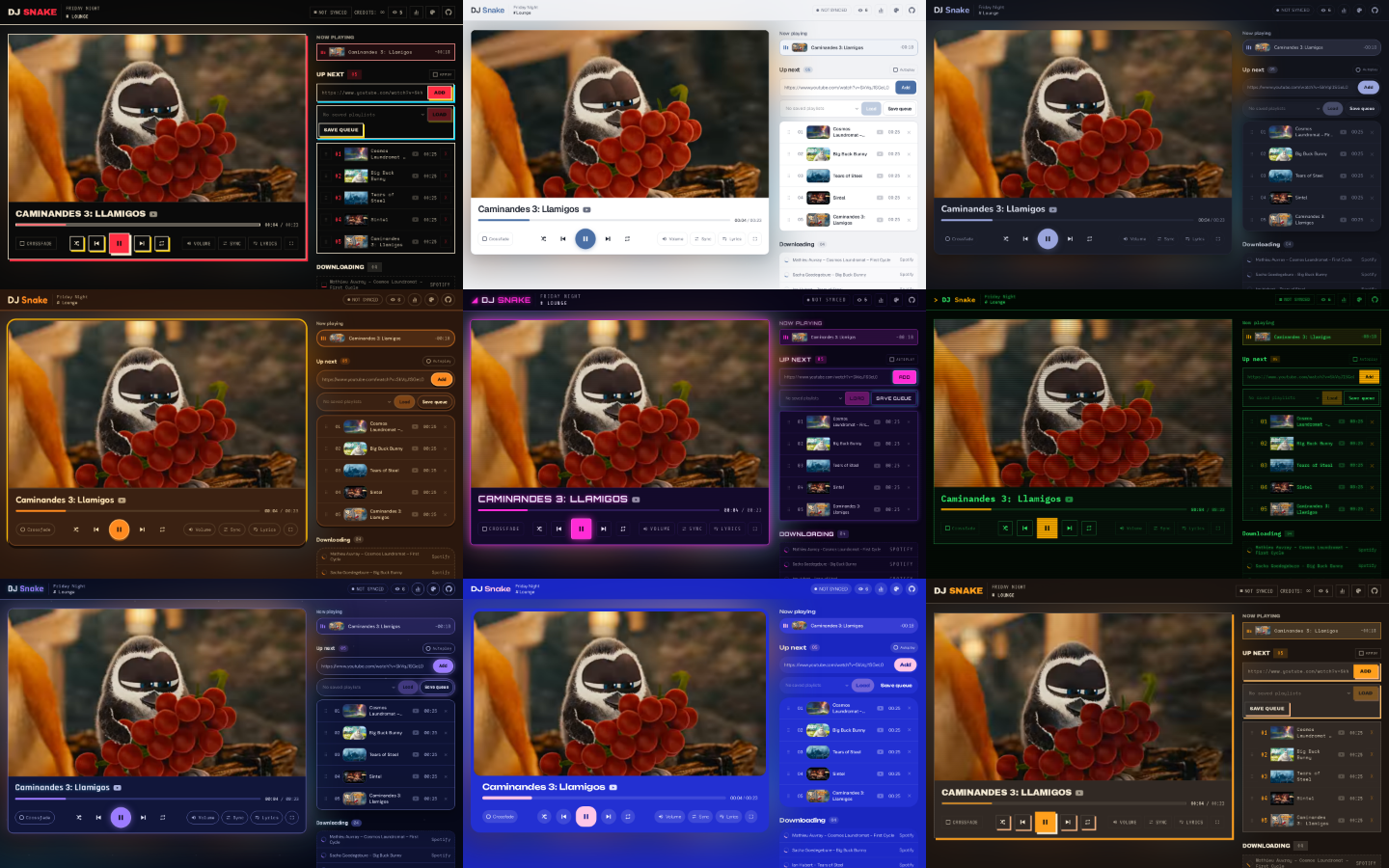
The page has eight preset themes: arcade (the default look), minimal, night, vinyl, club, terminal, space and cobalt (a flat ultramarine page with blush-pink controls and wide type). A ninth, custom, is built from three colors (background, text, accent) on top of a preset’s fonts and shapes.
Viewers can switch theme for themselves with the palette button in the page header. That choice stays in their browser. The custom theme can only be edited by an admin through the editor.
Setting the server default
Section titled “Setting the server default”Members with the Manage Server permission use these commands:
!themeshows the current theme and the presets.!theme <preset>sets the default for the server.!theme resetgoes back toWEB_THEMEand drops the custom colors, name and logo.
Servers that never ran !theme use the WEB_THEME environment variable.
The theme editor and logos
Section titled “The theme editor and logos”!theme edit sends you, by direct message, a private link to the page’s theme editor. The link is valid for 30 minutes and is tied to your server, so do not share it. If the server has no live session, one is opened without the bot joining voice. In the editor you can:
- pick the default theme;
- build a
custompalette from background, text and accent colors, starting from the fonts and shapes of a preset; - set a community name (up to 32 characters) shown instead of “djsnake”;
- upload a logo: PNG, JPEG, WebP or GIF, 512 KB at most (SVG is not accepted).
Themes and logos are stored in DATA_DIR (./data with Compose), so they survive restarts and rebuilds. The container runs as UID 1000, which must be able to write that directory.